Create Message Templates
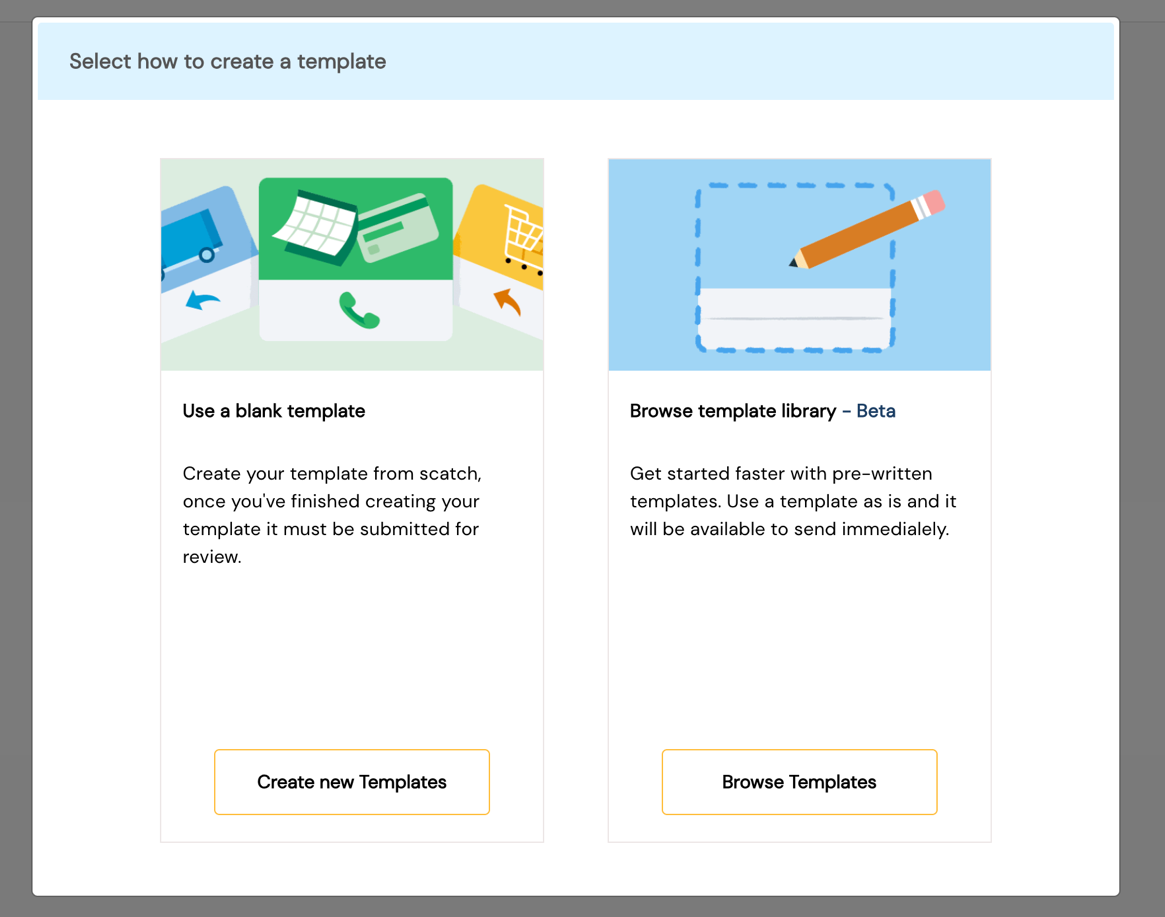
SmartTA supports two methods for creating WhatsApp templates:
- Blank Template — Build a fully custom template from scratch
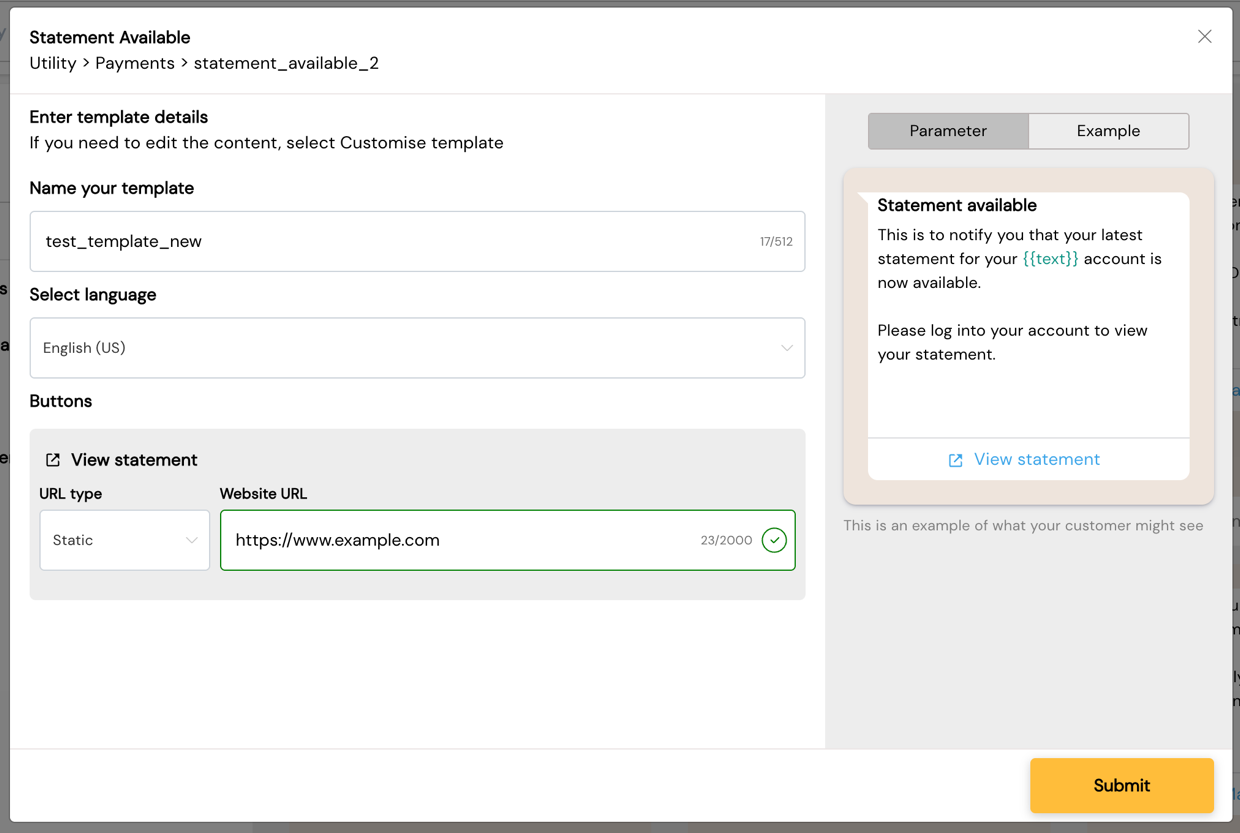
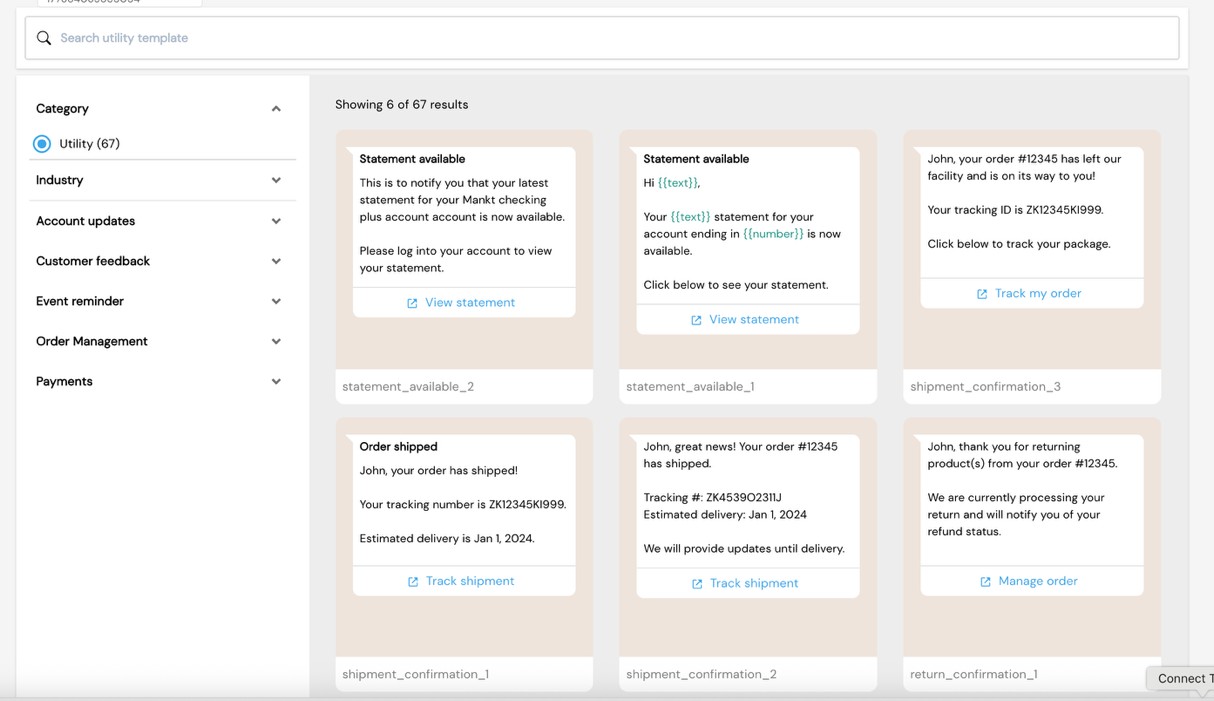
- Template Library — Select a pre-built utility template and customize it
Only Approved templates can be used in campaigns.
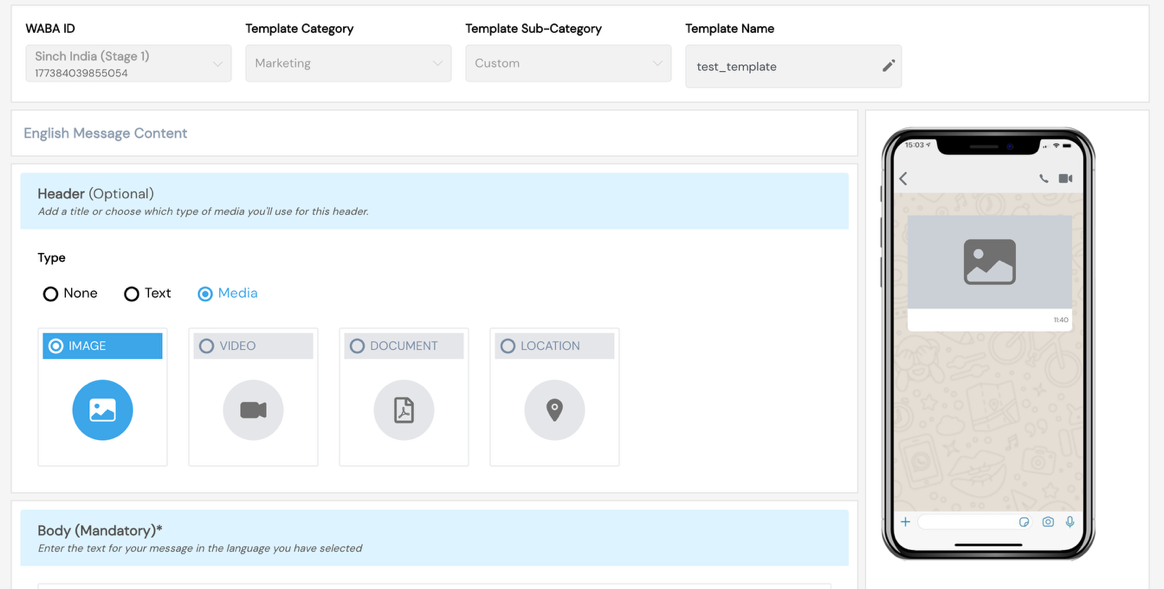
Create Template using a Blank Template
Navigate to Templates → Create Template → Blank Template.
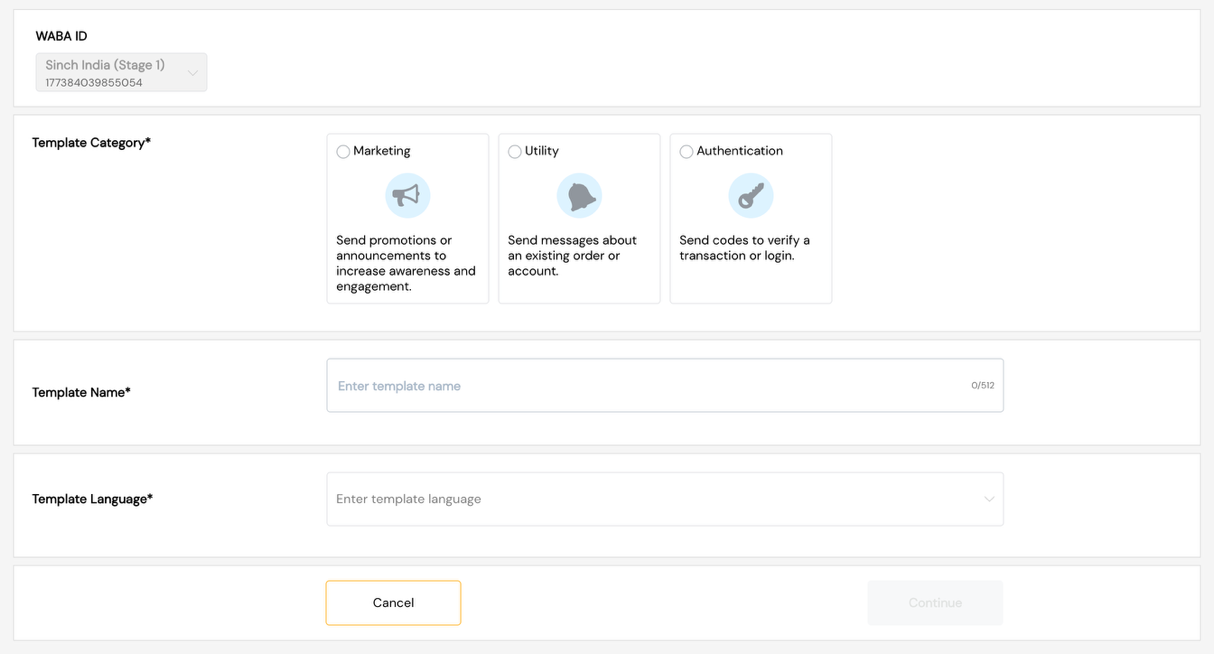
Template Details
| Field | Description |
|---|---|
| Template Name | Unique name (alphanumeric, underscores allowed, no spaces) |
| Category | Marketing / Utility / Authentication |
| Language | Select the primary language for the template |
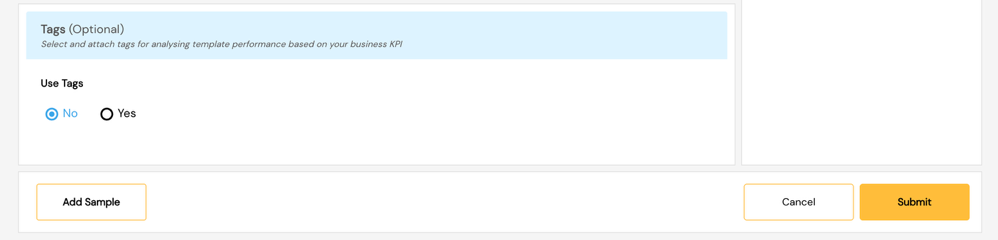
| Tags | Apply classification tags (optional) |
Template Component and Structure
WhatsApp templates consist of the following components:
Header (Optional)
The header appears at the top of the message. Supported types:
- Text — Static or dynamic text (1 variable allowed)
- Image — JPG/PNG, max 5 MB
- Video — MP4, max 16 MB
- Document — PDF, max 100 MB
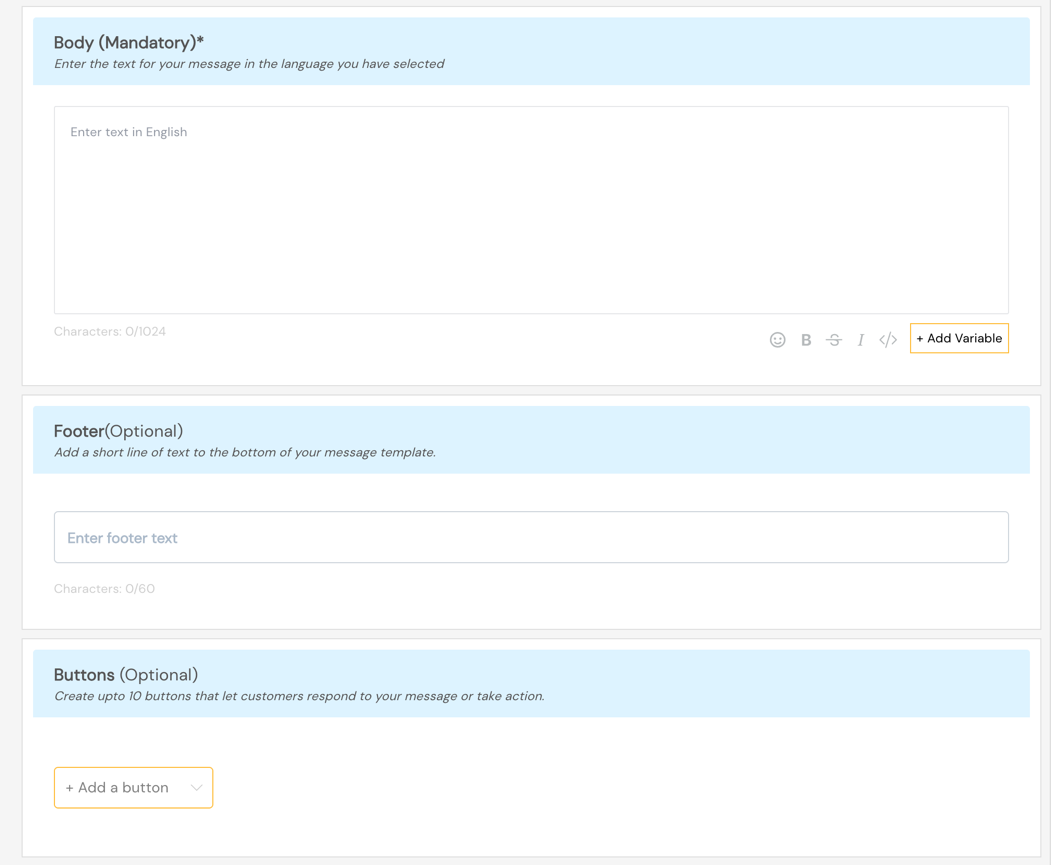
Body (Required)
The main content of the message. Guidelines:
- Maximum 1024 characters
- Supports dynamic variables in the format
{{1}},{{2}}, etc. - Variables must have a corresponding sample value
Footer (Optional)
A short static text shown below the message body. Maximum 60 characters.
Buttons (Optional)
Up to 10 buttons can be added. Button types:
| Type | Description |
|---|---|
| Quick Reply | Allows users to send a predefined reply |
| Call to Action – Phone | Dials a specified phone number |
| Call to Action – URL | Opens a URL (supports dynamic URL variables) |
| Copy Code | Copies a code to the clipboard (Authentication only) |
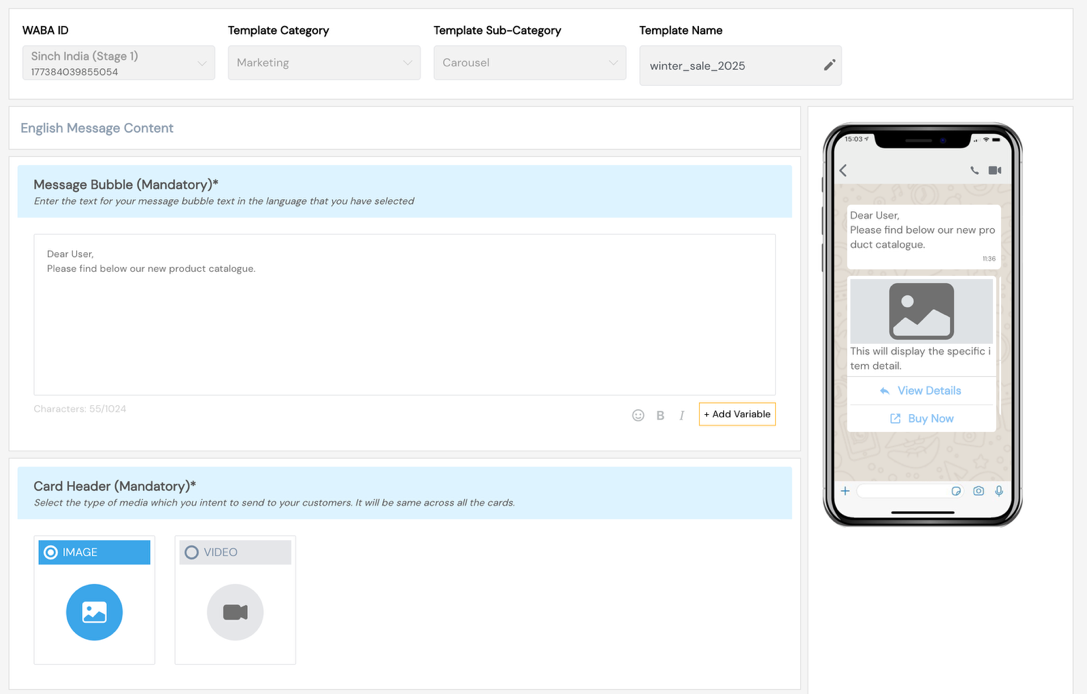
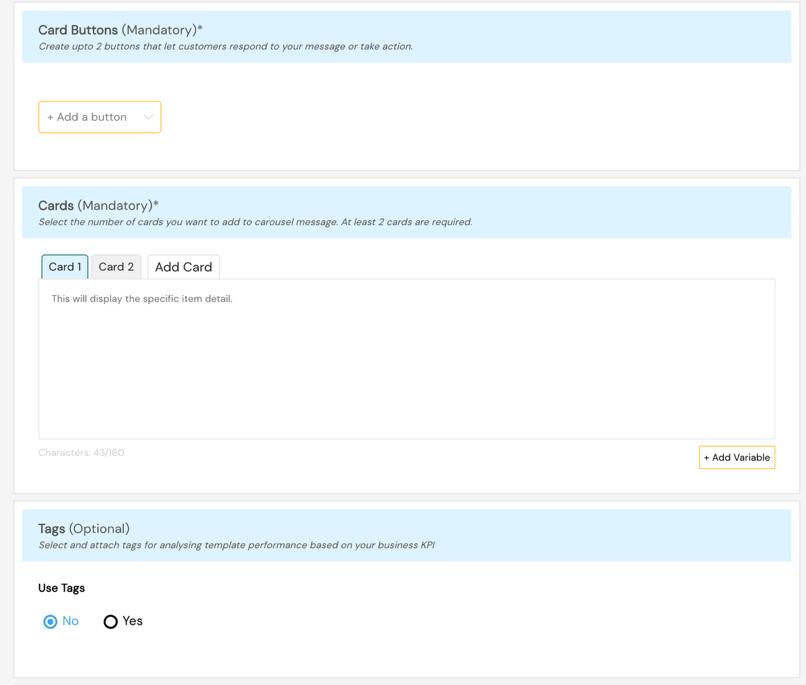
Carousel Templates (Marketing Only)
Carousel templates allow sending up to 10 cards in a horizontally scrollable format.
Each card contains:
- Image or Video (required)
- Body text with optional variables
- Up to 2 buttons per card (Quick Reply or CTA)
Carousel Guidelines:
- All cards must use the same button types
- Card media format must be consistent (all images or all videos)
- Minimum 2 cards, maximum 10 cards
Authentication Templates
Authentication templates are used for One-Time Passcode (OTP) delivery.
Features:
- Pre-approved format with Copy Code button
- Configurable OTP expiry message
- Security disclaimer (optional)
Authentication templates cannot include header media or custom footer text.
Create Template using Template Library (Utility Only)
Navigate to Templates → Create Template → Template Library.
- Browse available pre-built utility templates
- Select a template to preview its structure
- Customize the body text, variables, and language
- Submit for Meta approval
Template Library templates are pre-formatted for common utility scenarios such as order confirmations, delivery updates, and account alerts.
Screenshots
Create Template — Blank Template
Custom Template Components
Carousel Template
Template Library