Groups
The Group Management module allows enterprises to create pre-defined segments of contacts that can be reused across campaigns. By organizing contacts into groups, businesses can efficiently target specific audiences without repeatedly uploading or preparing datasets.
Groups can be created using:
- Upload File
- Manual Entry
Groups Dashboard
To access the Groups Dashboard:
- Log on to: https://smartta.aclwhatsapp.com/
- Navigate to Manage from the main navigation bar
- Select Groups
Features of the Groups Dashboard:
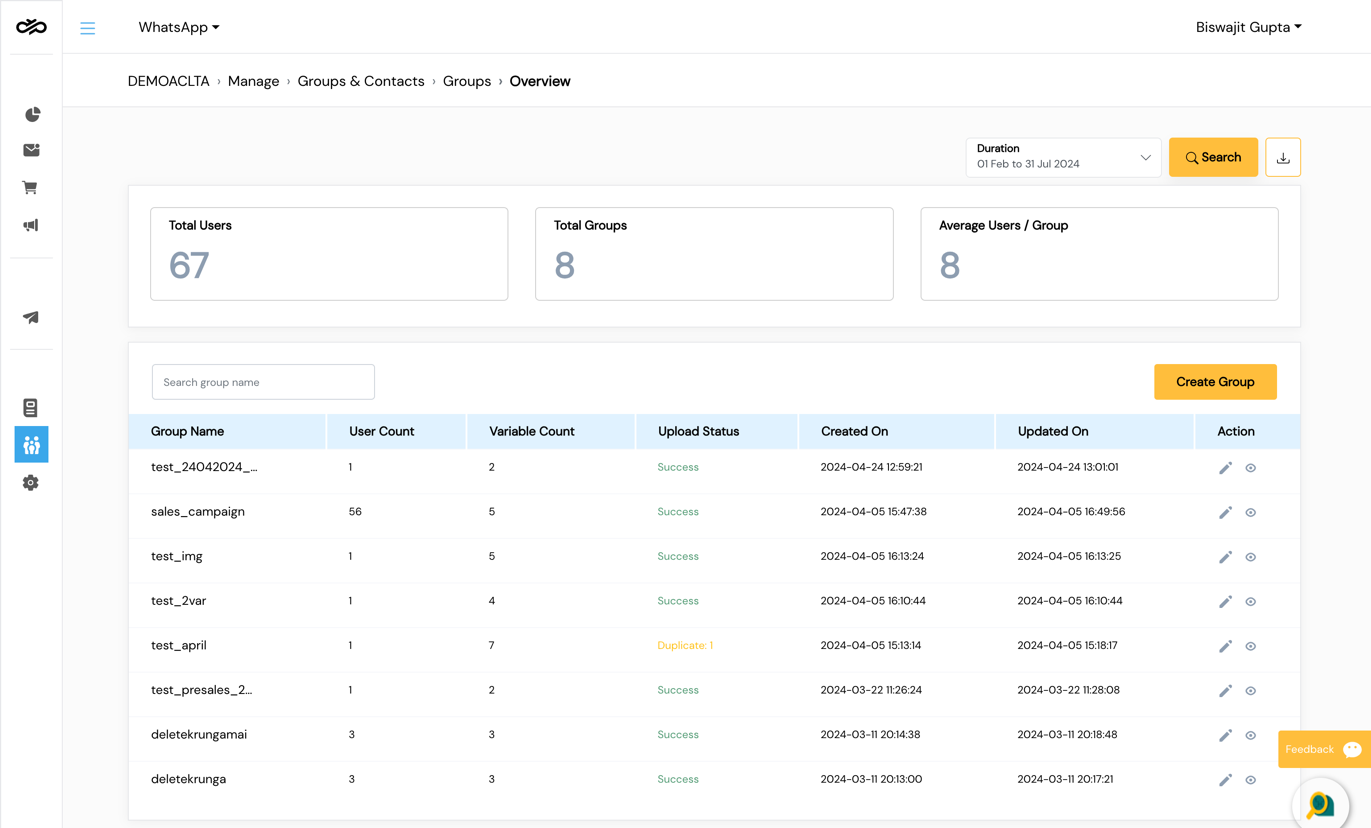
Group List View — All existing groups are displayed in a tabular format, sorted by Created Date (latest to oldest):
| Field | Description |
|---|---|
| Group Name | Name of the audience group |
| User Count | Number of contacts in the group |
| Variable Count | Number of personalized data fields per contact |
| Upload Status | Completed / In Progress / Failed |
| Created On | Date the group was created |
| Updated On | Date the group was last modified |
| Actions | Edit and View |
Summary Cards — High-level metrics for the selected date range:
- Total Users — Total contacts across all groups
- Total Groups — Number of groups created in the selected duration
- Average Users / Group — Average group size
Export Functionality — Download all group details in CSV format for auditing and reporting.
Create Groups
To create a new group, click the Create Group button on the upper-right of the Groups Dashboard.
Each group requires a Group Name — a user-friendly name easily identifiable during campaign creation.
Create Group – Upload File
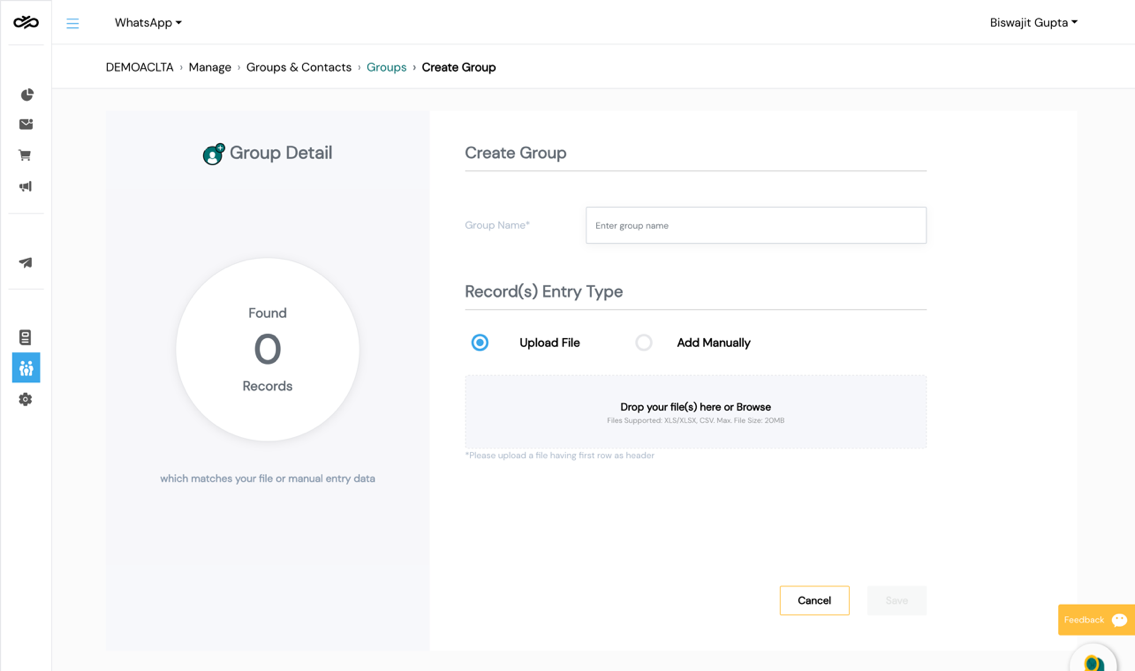
This method allows bulk upload of contact data using Excel or CSV files.
File Upload Guidelines:
- Maximum file size: 20 MB
- The first two columns must be:
- Country Code (mandatory)
- MSISDN (Mobile Number) (mandatory)
- Include headers based on the variable fields you intend to use in campaigns (e.g., name, city, order_id)
If the file contains invalid or missing data, the system may reject rows or display appropriate error messages.
Create Audience – Manual Entry
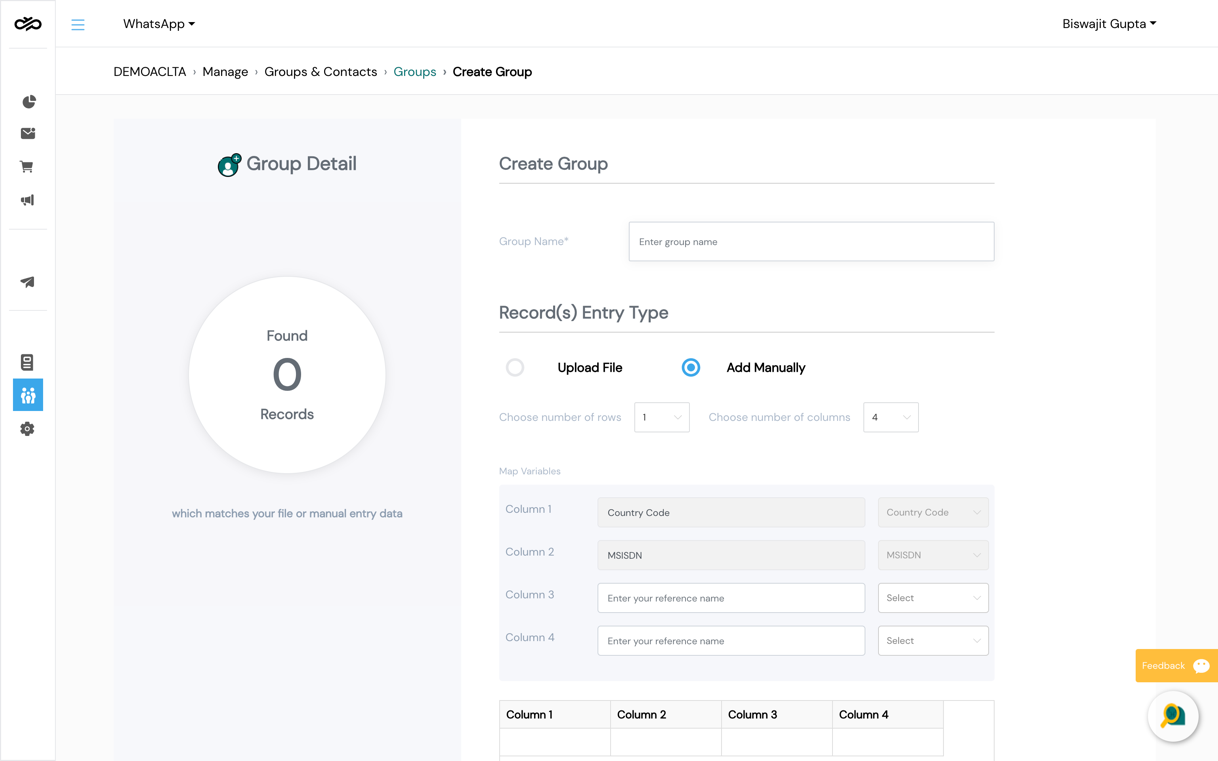
This option allows users to manually input contact data for smaller or ad-hoc groups.
Manual Entry Guidelines:
- Maximum contacts allowed: 100
- The first two columns (Country Code and MSISDN) are mandatory and non-editable
- Up to 10 additional columns can be added for personalized variables (e.g., name, age, gender, customer_id)
Manual entry is ideal for quick or temporary audience creation.
View Group
The View Group feature provides detailed visibility of a specific group:
- Total number of contacts in the group
- All variables associated with each contact
- Option to Download Group Data as CSV
Edit Group
The Edit Group feature allows users to:
- Add contacts to expand the group
- Remove contacts to clean or update the audience list
For active or scheduled campaigns, certain edits may be restricted to preserve audience integrity.
Screenshots
Groups Dashboard
Create Group
View Group