User Login
This section provides guidance on how to securely access the Conversation Messaging Tool (SmartTA) and manage your login credentials. After reviewing this module, users will be able to:
- Understand how to access the SmartTA platform
- Log in using their registered email ID and password
- Identify compatible and recommended web browsers for optimal performance
- Recover or reset their password in case it is forgotten or expired
Browser Compatibility
Users can access their Conversation Messaging Tool (SmartTA) account by entering the following URL into the browser address bar:
Portal URL: https://smartta.aclwhatsapp.com/
SmartTA is compatible with all modern web browsers. For optimal performance, security, and full feature support, it is recommended to use the latest versions of the following browsers:
| Supported Browser | Minimum Recommended Version |
|---|---|
| Google Chrome | 95.x and above |
| Mozilla Firefox | 47.x and above |
| Microsoft Edge | 95.x and above |
It is strongly recommended to keep the browser updated to the latest version for best security and user experience. SmartTA is not optimized for Internet Explorer or deprecated browser environments.
Login
Access to SmartTA is secured through a multi-step authentication process:
-
User Registration: New users are provisioned through the User Management module by an authorized administrator. A verification email is sent to the registered email address to initiate account activation.
-
Email Verification & Authentication: Users must verify their identity by clicking the unique activation link received on their registered email ID.
-
Password Creation: Upon first login, users are required to set a password adhering to the following security criteria:
- Minimum 10 characters and maximum 64 characters
- Must include at least one uppercase and one lowercase letter
- Must include at least one number and one special character
- Must not contain the username
- Must not match the previous three passwords
Use a strong password that is not shared or reused across other platforms.
-
Password Expiry: SmartTA enforces a 90-day password expiry cycle. Users will be prompted to update their password when approaching the expiry date.
-
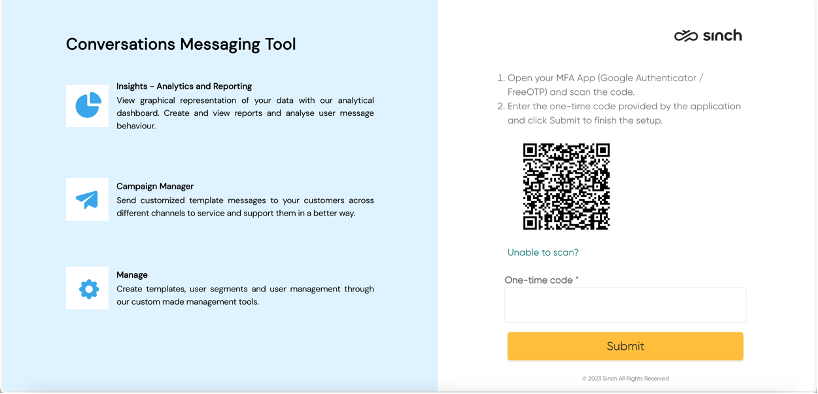
Multi-Factor Authentication (MFA) Setup: SmartTA requires users to configure an MFA application such as Google Authenticator or FreeOTP. Users must scan the MFA QR code shown on screen and enter the 6-digit code generated by the MFA app.
-
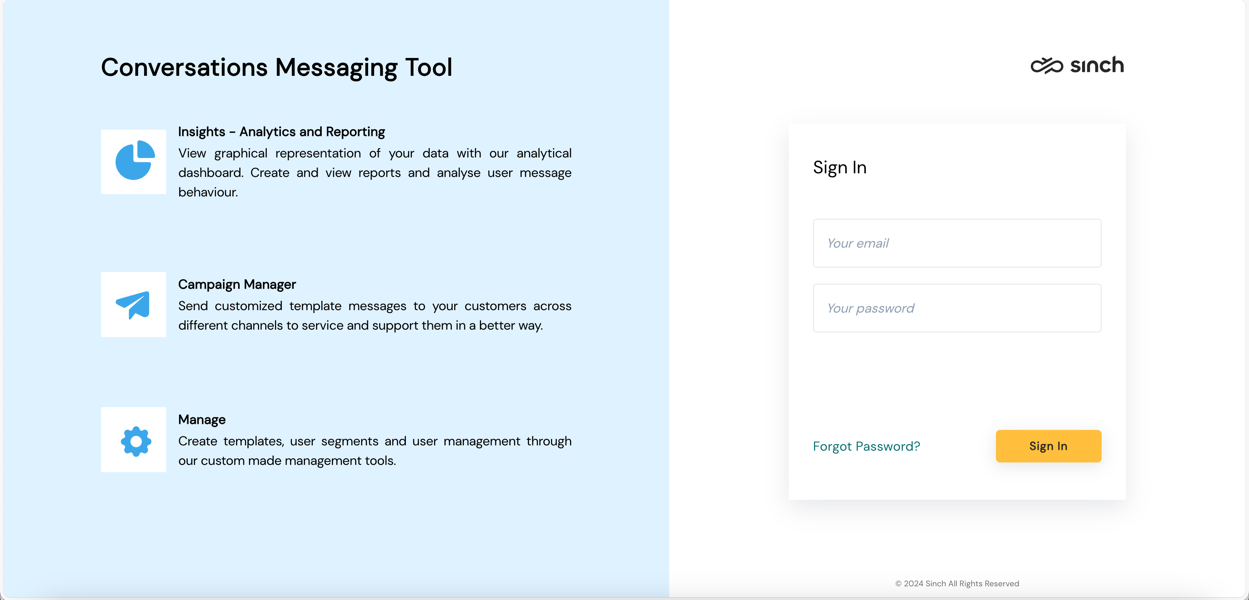
Secure Login Access: Once setup is complete, the login flow includes:
- Enter Email ID and Password
- Validate identity by entering the MFA-generated code
Forgot / Reset Password
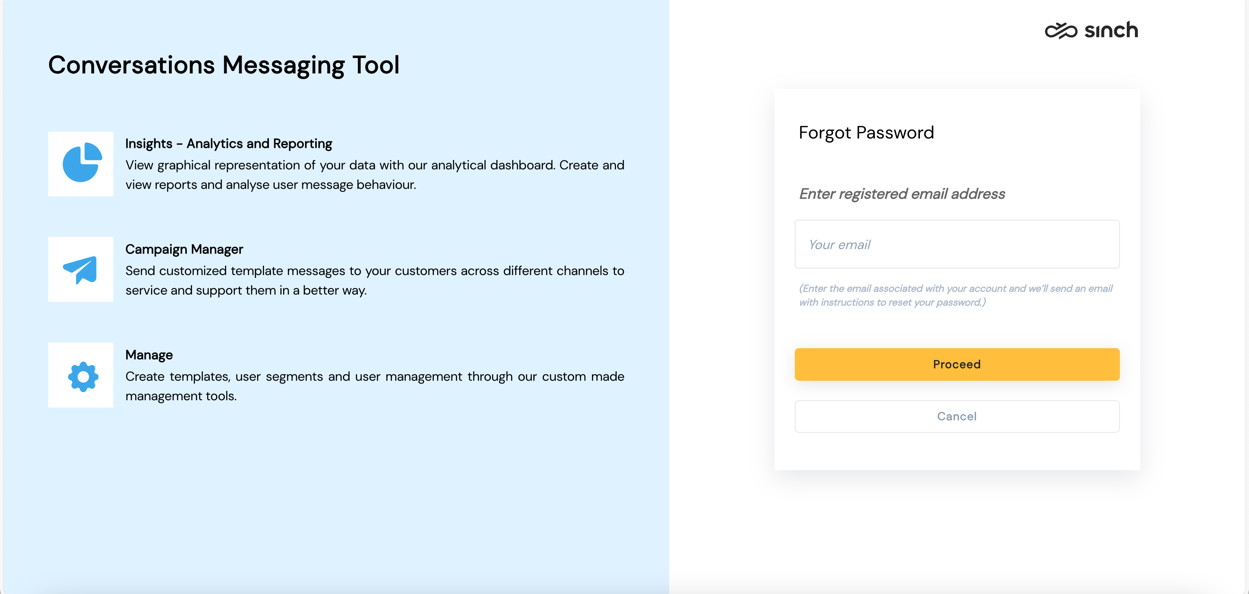
In case a user forgets their password, SmartTA provides a secure password reset option directly from the login page.
To reset the password:
- On the Login screen, click "Forgot Password?"
- Enter your registered email ID
- Select Submit to initiate validation
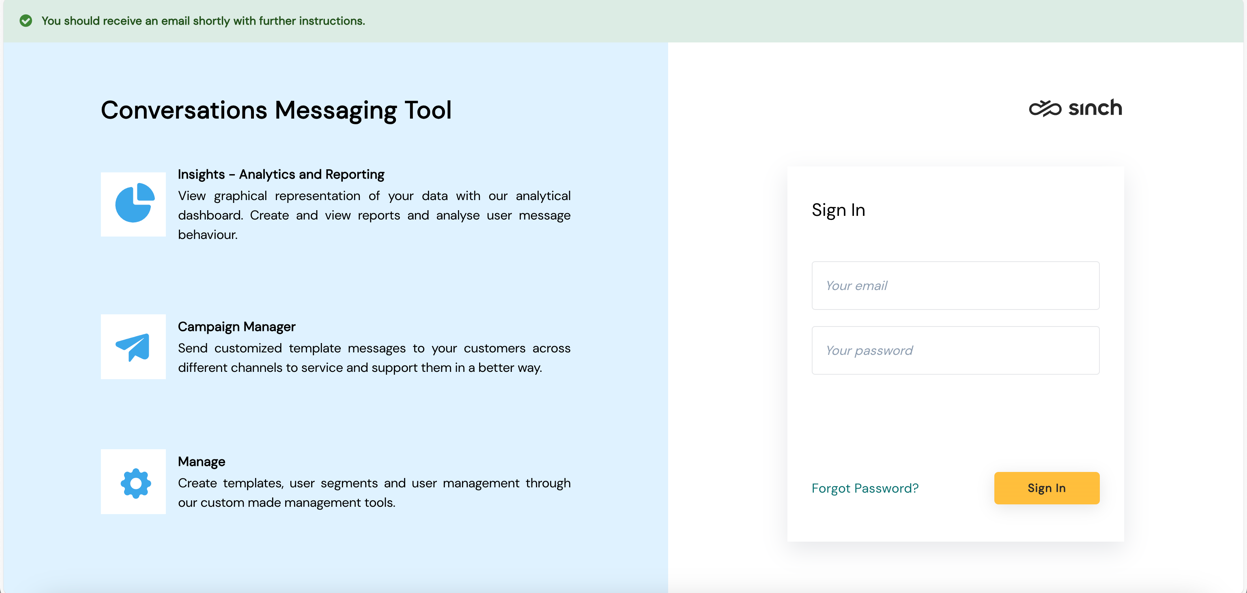
If the email ID is valid and associated with an active account, the system will send an email containing a password reset link and step-by-step instructions.
The reset link is time-sensitive. If it expires, users must initiate the reset process again.
Screenshots
Login Screen
MFA Setup
Forgot Password